Hey all, this is a pretty big update with some new features and bug fixes.
You can now zoom in the camera view to avoid capturing the hood etc by simply pinching:

We also added zoom/pan to images that hasn’t been uploaded:

You can now also rotate all maps (and reset the rotation by tapping on the compass):

And finally we have added shortcuts (Shortcuts app and Siri):
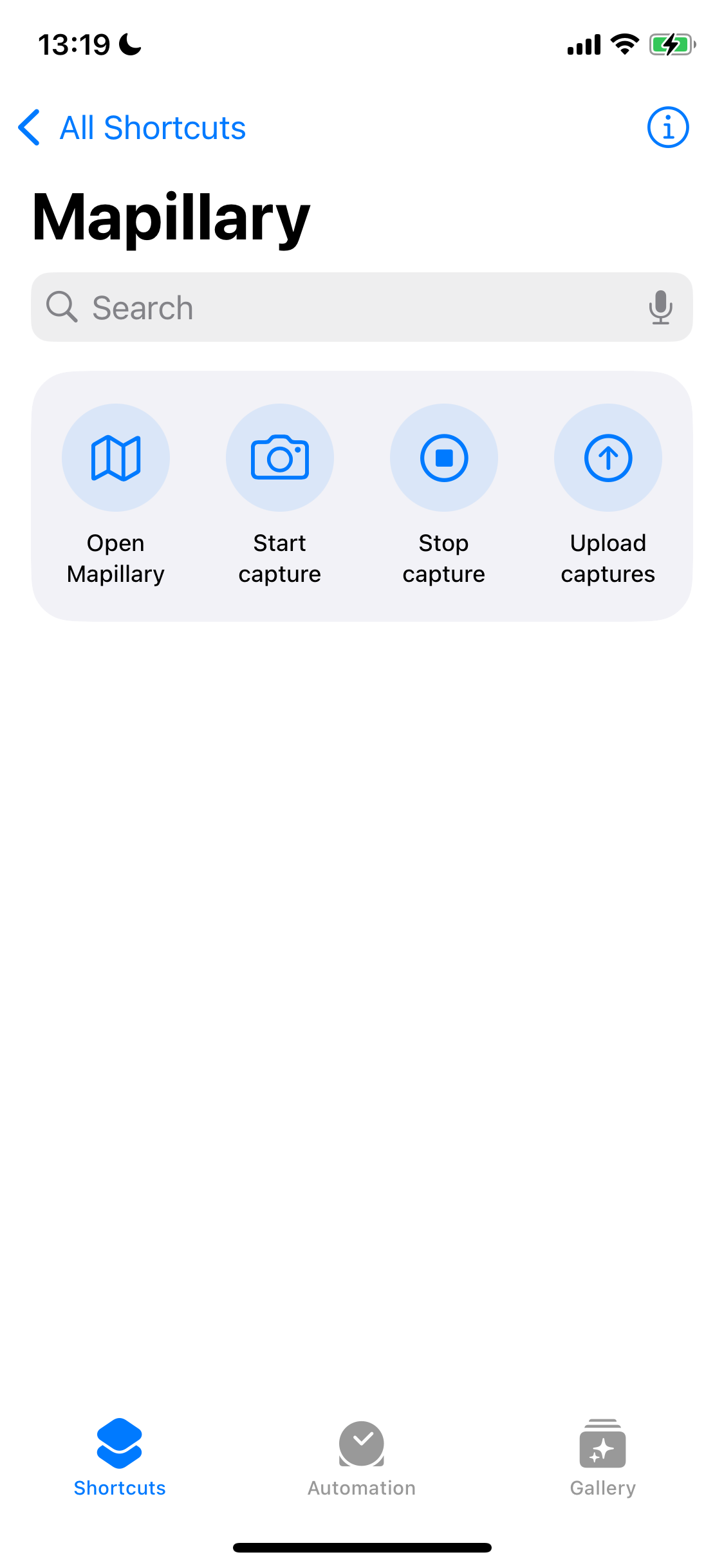
These phrases are currently supported:
Open Mapillary:
“Open Mapillary”
“Launch Mapillary”
Start capture:
“Start capture in Mapillary”
“Start capturing with Mapillary”
“Capture with Mapillary”
Stop capture:
“Stop capture in Mapillary”
“Stop capturing with Mapillary”
“Stop Mapillary capture”
Upload captures:
“Upload Mapillary images”
“Upload Mapillary photos”
“Upload captures to Mapillary”
“Start Mapillary upload”
“Upload to Mapillary”
“Send captures to Mapillary”
Complete release notes
New features:
- Enabled pinch-to-zoom on camera screen
- Enabled 2-finger map rotation on maps
- Enabled pinch-to-zoom on captured (not yet uploaded) imagery
- Added iOS Shortcuts/Siri Shortcuts support for starting capture/upload etc
- Added “This image is a duplicate” to image report form
- Reduced sequence cutoff distance to 100 meters
- “My coverage” setting is now persisted
- Localization updates
Bug fixes:
- Fixed bug where importing RAW images would crash the app
- Fixed bug where nothing would work on Camera screen if the Location services were not enabled
- Fixed bug where error messages on Camera screen were not rotated if orientation lock was enabled
- Fixed bug where grippy icon missing from bottom sheet
- Fixed bug where the app would crash when signing out
- Fixed bug where sequences remained cached with ‘Finalizing’ status even if they were ‘Finished’
- Fixed bug where sequences remained cached with ‘Processing’ status even if they were ‘Failed’
- Fixed bug where user was not taken to Homepage on iOS 15 after signing up
- Fixed bug where the captures from the previous user could still be visible on Homepage after logging in with a different account
- Fixed bug where the screen remained blocked in landscape mode after tapping on the Camera button while upload was ongoing
- Fixed bug where the screen had a small flicker when scrolling down and then back up on the Homepage
- Fixed bug where the screen would flash momentarily when opening an image and then going back
- Fixed bug where the map in Profile could not be accessed if captures were ‘Finalizing’
- Fixed bug where ‘Tilt your phone up’ and ‘Turn phone to capture’ were displayed at the same time changing device orientation in Camera
- Fixed bug where Camera view was upside down after minimizing and re-opening the app if orientation lock was enabled
- Fixed bug where Camera capture was still possible if precise location permission was turned off
- Fixed bug where screen would get distorted momentarily after Camera was exited
- Fixed bug where screen orientation would get stuck in horizontal mode after accessing camera during upload
Thanks for contributing to Mapillary, and let me know if you run into any issues!
/Anders
 Thank you for the graphic display of features. Good job!