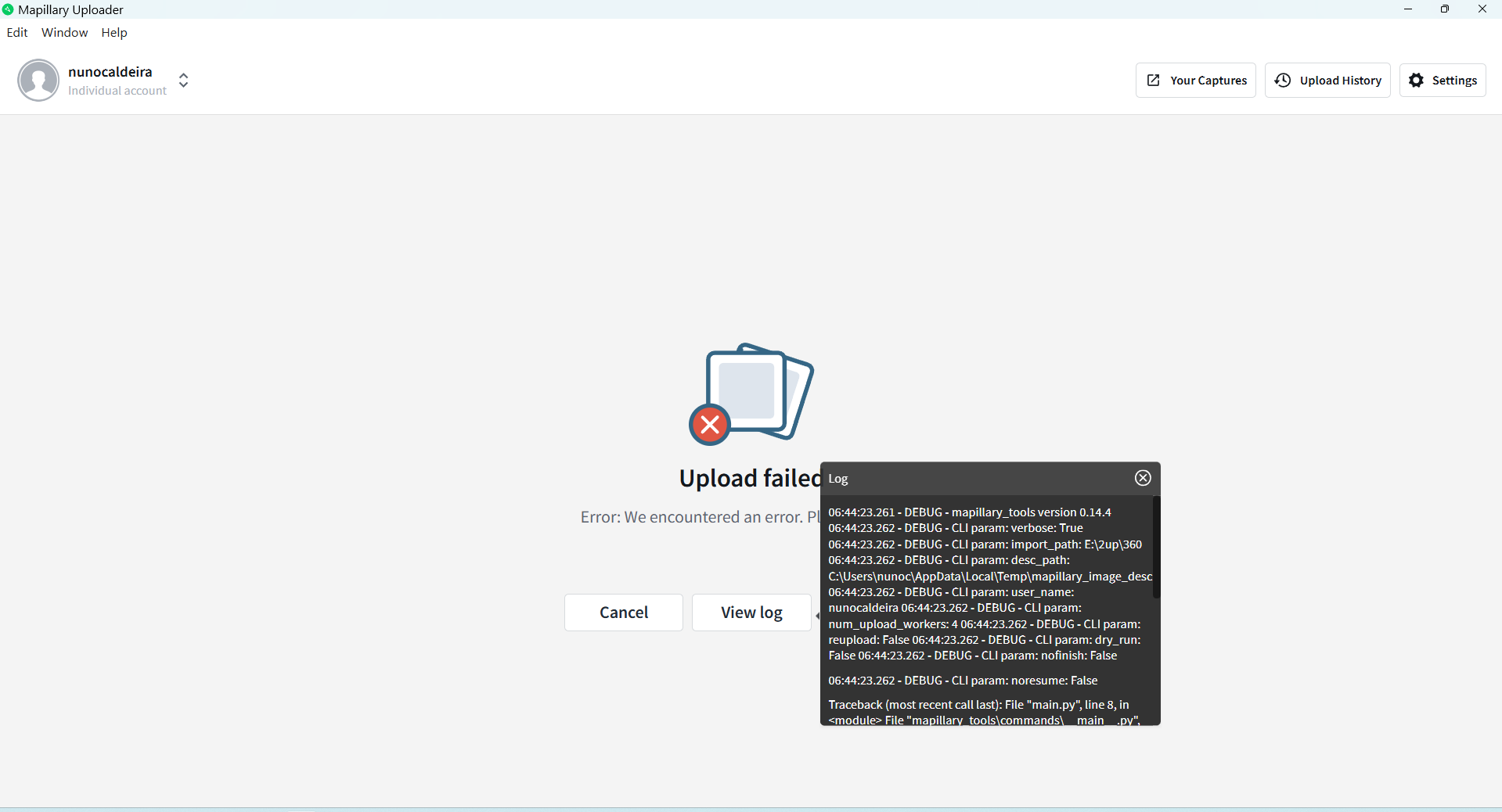
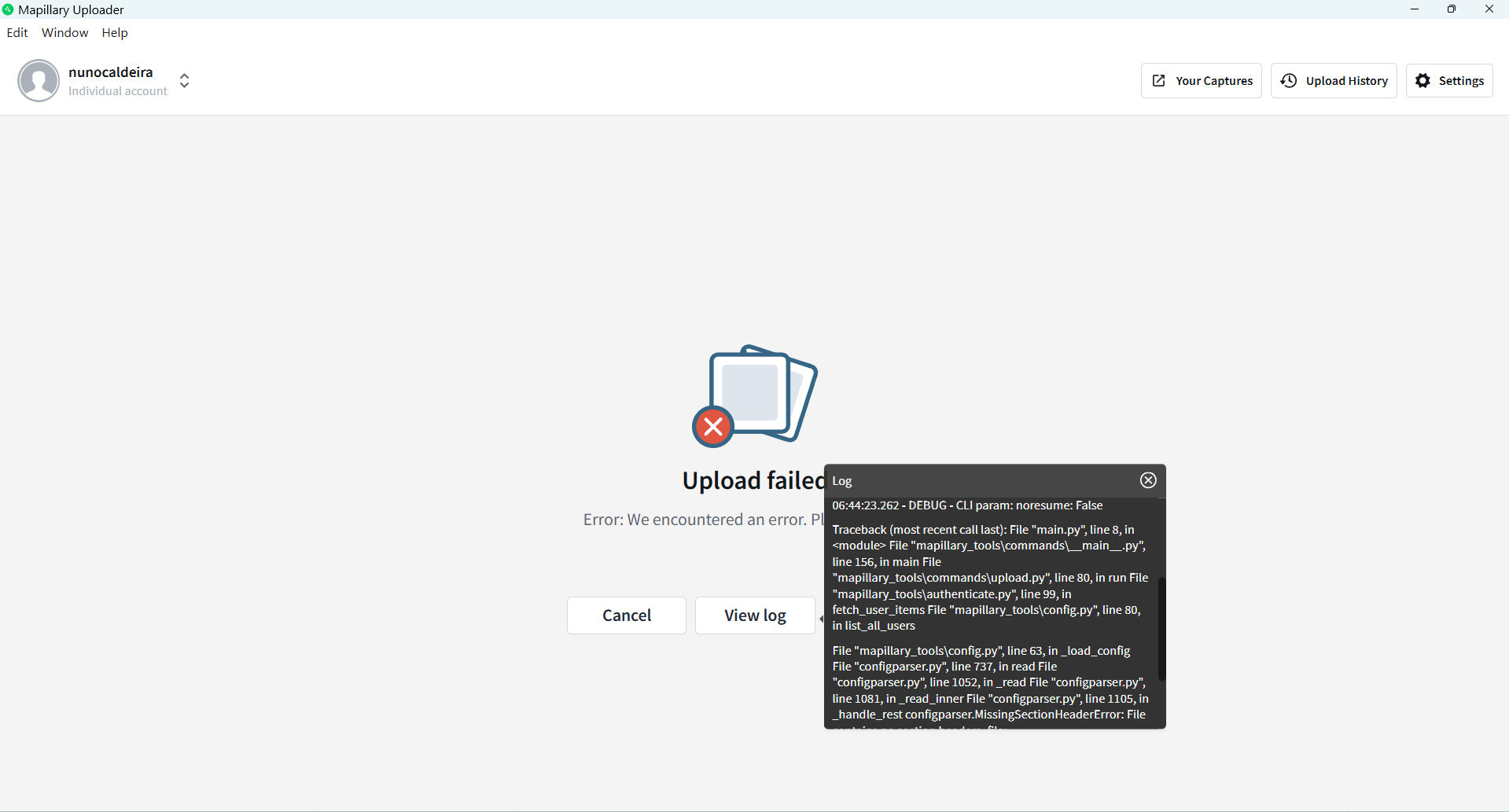
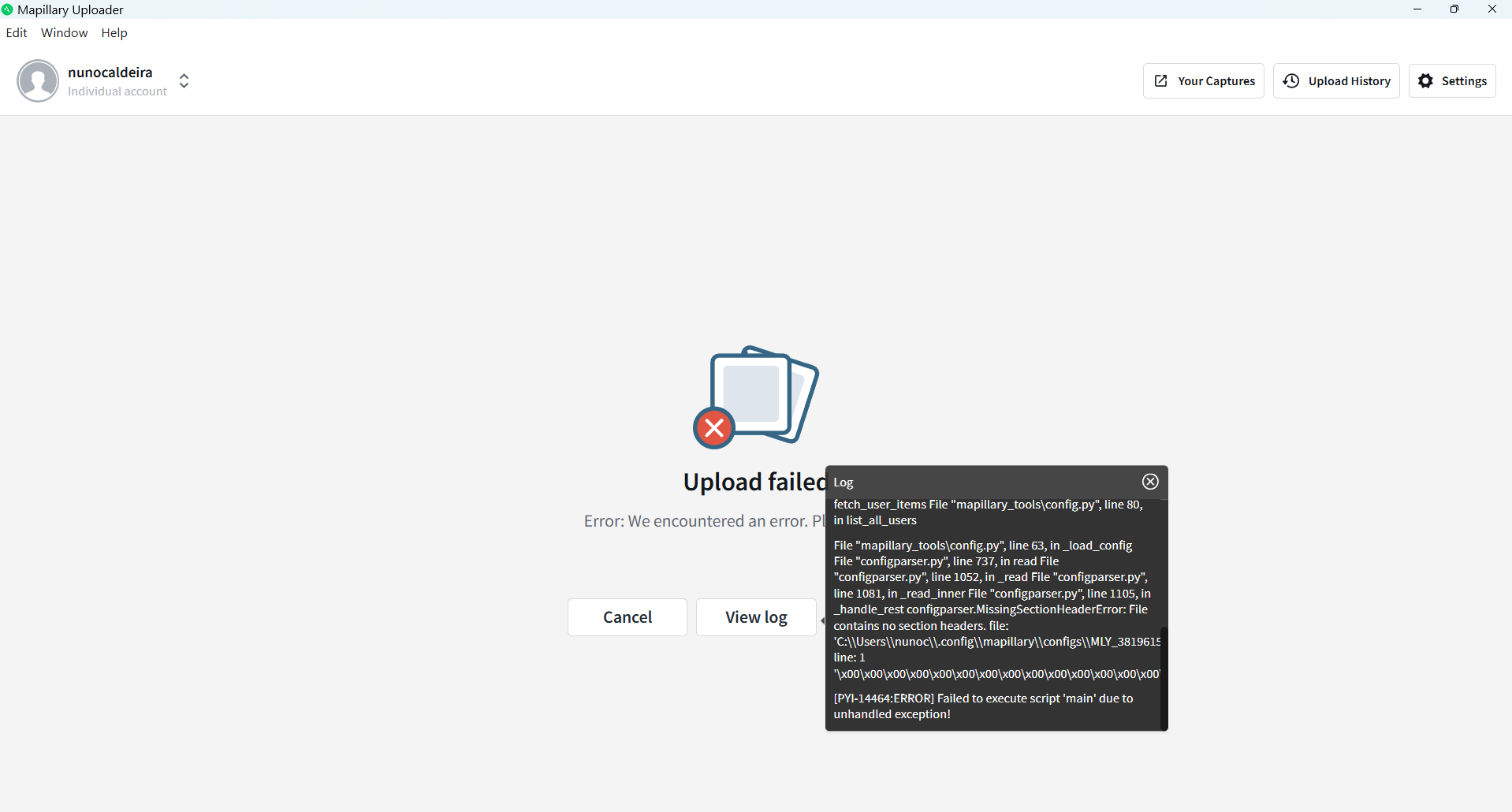
Now, literally every day, when I want to send two sequences (two folders), everything is fine after the first sequence, but the second one gets “Upload failed, Error: We encountered an error. Please try again.”
[2025-12-12 11:26:47.703] [debug] [mapillary:tools] 11:26:47.713 - INFO - ==> Upload summary
11:26:47.713 - INFO - Nothing uploaded. Bye.
[2025-12-12 11:26:47.719] [debug] [mapillary:tools] Traceback (most recent call last):
[2025-12-12 11:26:47.719] [debug] [mapillary:tools] File “main.py”, line 8, in
File “mapillary_tools\commands_main_.py”, line 156, in main
File “mapillary_tools\commands\upload.py”, line 82, in run
File “mapillary_tools\upload.py”, line 121, in upload
File “mapillary_tools\upload.py”, line 112, in upload
File “mapillary_tools\upload.py”, line 631, in _continue_or_fail
[2025-12-12 11:26:47.719] [debug] [mapillary:tools] File “mapillary_tools\uploader.py”, line 573, in upload_images
File “mapillary_tools\uploader.py”, line 599, in _upload_sequence_and_finish
File “mapillary_tools\uploader.py”, line 594, in _upload_sequence_and_finish
File “mapillary_tools\uploader.py”, line 670, in _upload_images_parallel
File “concurrent\futures_base.py”, line 449, in result
File “concurrent\futures_base.py”, line 401, in __get_result
File “concurrent\futures\thread.py”, line 59, in run
File “mapillary_tools\uploader.py”, line 722, in _upload_images_from_queue
File “mapillary_tools\uploader.py”, line 767, in upload
[2025-12-12 11:26:47.719] [debug] [mapillary:tools] File “mapillary_tools\uploader.py”, line 809, in _get_cached_file_handle
File “mapillary_tools\history.py”, line 122, in get
File “mapillary_tools\history.py”, line 118, in get
File “”, line 811, in get
File “mapillary_tools\store.py”, line 99, in getitem
File “mapillary_tools\store.py”, line 87, in _execute
sqlite3.OperationalError: disk I/O error
[2025-12-12 11:26:47.719] [debug] [mapillary:tools] [PYI-7672:ERROR] Failed to execute script ‘main’ due to unhandled exception!
[2025-12-12 11:26:47.875] [debug] [mapillary:tools] process exit code 1 and signal null
[2025-12-12 11:26:47.891] [error] [store:modules:uploadSession] exit with code 1 and signal null
[2025-12-12 11:26:47.953] [info] [power-saver-blocker] stop: 1
[2025-12-12 11:26:47.969] [info] [services:observer-manager] Stopping 1f1b26f0-d73f-11f0-96ab-873bfbb3ede6
[2025-12-12 11:26:47.969] [error] [vue] { code: 1, message: ‘exit with code 1 and signal null’ }
So, I click Retry, the MB counter increases, and at the end we get the same message: “Upload failed, Error: We encountered an error. Please try again.”
[2025-12-12 11:47:48.596] [debug] [mapillary:tools] 11:47:48.595 - INFO - ==> Upload summary
[2025-12-12 11:47:48.597] [debug] [mapillary:tools] 11:47:48.597 - INFO - Nothing uploaded. Bye.
[2025-12-12 11:47:48.607] [debug] [mapillary:tools] Traceback (most recent call last):
[2025-12-12 11:47:48.608] [debug] [mapillary:tools] File “main.py”, line 8, in
File “mapillary_tools\commands_main_.py”, line 156, in main
File “mapillary_tools\commands\upload.py”, line 82, in run
File “mapillary_tools\upload.py”, line 121, in upload
[2025-12-12 11:47:48.613] [debug] [mapillary:tools] File “mapillary_tools\upload.py”, line 112, in upload
[2025-12-12 11:47:48.616] [debug] [mapillary:tools] File “mapillary_tools\upload.py”, line 631, in _continue_or_fail
[2025-12-12 11:47:48.619] [debug] [mapillary:tools] File “mapillary_tools\uploader.py”, line 573, in upload_images
[2025-12-12 11:47:48.629] [debug] [mapillary:tools] File “mapillary_tools\uploader.py”, line 599, in _upload_sequence_and_finish
[2025-12-12 11:47:48.629] [debug] [mapillary:tools] File “mapillary_tools\uploader.py”, line 594, in _upload_sequence_and_finish
[2025-12-12 11:47:48.629] [debug] [mapillary:tools] File “mapillary_tools\uploader.py”, line 670, in _upload_images_parallel
[2025-12-12 11:47:48.629] [debug] [mapillary:tools] File “concurrent\futures_base.py”, line 449, in result
[2025-12-12 11:47:48.629] [debug] [mapillary:tools] File “concurrent\futures_base.py”, line 401, in __get_result
[2025-12-12 11:47:48.629] [debug] [mapillary:tools] File “concurrent\futures\thread.py”, line 59, in run
[2025-12-12 11:47:48.629] [debug] [mapillary:tools] File “mapillary_tools\uploader.py”, line 722, in _upload_images_from_queue
[2025-12-12 11:47:48.645] [debug] [mapillary:tools] File “mapillary_tools\uploader.py”, line 767, in upload
[2025-12-12 11:47:48.645] [debug] [mapillary:tools] File “mapillary_tools\uploader.py”, line 809, in _get_cached_file_handle
[2025-12-12 11:47:48.645] [debug] [mapillary:tools] File “mapillary_tools\history.py”, line 122, in get
[2025-12-12 11:47:48.645] [debug] [mapillary:tools] File “mapillary_tools\history.py”, line 118, in get
[2025-12-12 11:47:48.645] [debug] [mapillary:tools] File “”, line 811, in get
[2025-12-12 11:47:48.645] [debug] [mapillary:tools] File “mapillary_tools\store.py”, line 99, in getitem
[2025-12-12 11:47:48.645] [debug] [mapillary:tools] File “mapillary_tools\store.py”, line 87, in _execute
[2025-12-12 11:47:48.645] [debug] [mapillary:tools] sqlite3.OperationalError: disk I/O error
[2025-12-12 11:47:48.645] [debug] [mapillary:tools] [
[2025-12-12 11:47:48.645] [debug] [mapillary:tools] P
[2025-12-12 11:47:48.660] [debug] [mapillary:tools] Y
[2025-12-12 11:47:48.660] [debug] [mapillary:tools] I
[2025-12-12 11:47:48.660] [debug] [mapillary:tools] -
[2025-12-12 11:47:48.660] [debug] [mapillary:tools] 7
[2025-12-12 11:47:48.660] [debug] [mapillary:tools] 7
[2025-12-12 11:47:48.660] [debug] [mapillary:tools] 7
[2025-12-12 11:47:48.660] [debug] [mapillary:tools] 2
[2025-12-12 11:47:48.660] [debug] [mapillary:tools] :
[2025-12-12 11:47:48.660] [debug] [mapillary:tools] E
[2025-12-12 11:47:48.660] [debug] [mapillary:tools] R
[2025-12-12 11:47:48.676] [debug] [mapillary:tools] R
[2025-12-12 11:47:48.676] [debug] [mapillary:tools] O
[2025-12-12 11:47:48.676] [debug] [mapillary:tools] R
[2025-12-12 11:47:48.676] [debug] [mapillary:tools] ]
[2025-12-12 11:47:48.676] [debug] [mapillary:tools]
[2025-12-12 11:47:48.676] [debug] [mapillary:tools] F
[2025-12-12 11:47:48.676] [debug] [mapillary:tools] a
[2025-12-12 11:47:48.676] [debug] [mapillary:tools] i
[2025-12-12 11:47:48.676] [debug] [mapillary:tools] l
[2025-12-12 11:47:48.676] [debug] [mapillary:tools] e
[2025-12-12 11:47:48.692] [debug] [mapillary:tools] d
[2025-12-12 11:47:48.692] [debug] [mapillary:tools]
[2025-12-12 11:47:48.692] [debug] [mapillary:tools] t
[2025-12-12 11:47:48.692] [debug] [mapillary:tools] o
[2025-12-12 11:47:48.692] [debug] [mapillary:tools]
[2025-12-12 11:47:48.692] [debug] [mapillary:tools] e
[2025-12-12 11:47:48.692] [debug] [mapillary:tools] x
[2025-12-12 11:47:48.707] [debug] [mapillary:tools] e
[2025-12-12 11:47:48.707] [debug] [mapillary:tools] c
[2025-12-12 11:47:48.707] [debug] [mapillary:tools] u
[2025-12-12 11:47:48.707] [debug] [mapillary:tools] t
[2025-12-12 11:47:48.707] [debug] [mapillary:tools] e
[2025-12-12 11:47:48.723] [debug] [mapillary:tools]
[2025-12-12 11:47:48.723] [debug] [mapillary:tools] c
[2025-12-12 11:47:48.723] [debug] [mapillary:tools] r
[2025-12-12 11:47:48.723] [debug] [mapillary:tools] s
[2025-12-12 11:47:48.723] [debug] [mapillary:tools] i
[2025-12-12 11:47:48.723] [debug] [mapillary:tools] p
[2025-12-12 11:47:48.723] [debug] [mapillary:tools] t
[2025-12-12 11:47:48.738] [debug] [mapillary:tools]
[2025-12-12 11:47:48.738] [debug] [mapillary:tools] ’
[2025-12-12 11:47:48.738] [debug] [mapillary:tools] m
[2025-12-12 11:47:48.738] [debug] [mapillary:tools] a
[2025-12-12 11:47:48.738] [debug] [mapillary:tools] i
[2025-12-12 11:47:48.738] [debug] [mapillary:tools] n
[2025-12-12 11:47:48.738] [debug] [mapillary:tools] ’
[2025-12-12 11:47:48.738] [debug] [mapillary:tools]
[2025-12-12 11:47:48.754] [debug] [mapillary:tools] d
[2025-12-12 11:47:48.754] [debug] [mapillary:tools] u
[2025-12-12 11:47:48.754] [debug] [mapillary:tools] e
[2025-12-12 11:47:48.754] [debug] [mapillary:tools]
[2025-12-12 11:47:48.754] [debug] [mapillary:tools] t
[2025-12-12 11:47:48.754] [debug] [mapillary:tools] o
[2025-12-12 11:47:48.754] [debug] [mapillary:tools]
[2025-12-12 11:47:48.770] [debug] [mapillary:tools] a
[2025-12-12 11:47:48.770] [debug] [mapillary:tools] n
[2025-12-12 11:47:48.770] [debug] [mapillary:tools] d
[2025-12-12 11:47:48.770] [debug] [mapillary:tools] l
[2025-12-12 11:47:48.770] [debug] [mapillary:tools] e
[2025-12-12 11:47:48.770] [debug] [mapillary:tools] d
[2025-12-12 11:47:48.785] [debug] [mapillary:tools]
[2025-12-12 11:47:48.785] [debug] [mapillary:tools] e
[2025-12-12 11:47:48.785] [debug] [mapillary:tools] x
[2025-12-12 11:47:48.785] [debug] [mapillary:tools] c
[2025-12-12 11:47:48.785] [debug] [mapillary:tools] e
[2025-12-12 11:47:48.785] [debug] [mapillary:tools] p
[2025-12-12 11:47:48.785] [debug] [mapillary:tools] t
[2025-12-12 11:47:48.785] [debug] [mapillary:tools] i
[2025-12-12 11:47:48.801] [debug] [mapillary:tools] o
[2025-12-12 11:47:48.801] [debug] [mapillary:tools] n
[2025-12-12 11:47:48.801] [debug] [mapillary:tools] !
[2025-12-12 11:47:48.801] [debug] [mapillary:tools]
[2025-12-12 11:47:48.754] [debug] [mapillary:tools] u
[2025-12-12 11:47:48.770] [debug] [mapillary:tools] n
[2025-12-12 11:47:48.770] [debug] [mapillary:tools] h
[2025-12-12 11:47:48.926] [debug] [mapillary:tools] process exit code 1 and signal null
[2025-12-12 11:47:48.926] [error] [store:modules:uploadSession] exit with code 1 and signal null
[2025-12-12 11:47:48.973] [info] [power-saver-blocker] stop: 6
[2025-12-12 11:47:48.988] [info] [services:observer-manager] Stopping ef5f5ea0-d747-11f0-96ab-873bfbb3ede6
[2025-12-12 11:47:48.988] [error] [vue] { code: 1, message: ‘exit with code 1 and signal null’ }